Convert JPG to PNG Online: The Ultimate Guide
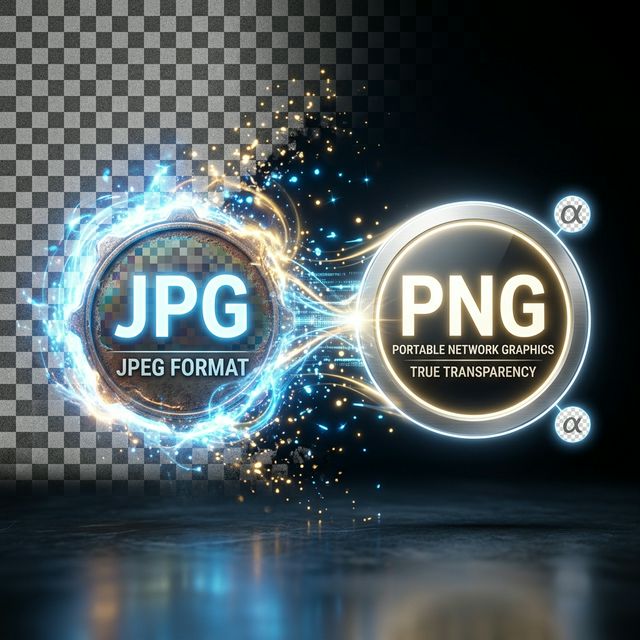
If you're dealing with photos taken on your smartphone, nine times out of ten, you are working with a JPG file. It's the undisputed king of digital photography. But what happens when you need to send a logo to a web developer, or you want to combine sharp lines into a digital flyer? Suddenly, your reliable JPG looks dirty, pixelated, and lacks the one feature designers need most: transparency.
Knowing when and how to convert a JPG to a PNG is a fundamental skill for anyone stepping into e-commerce, digital marketing, or basic web design.
Why Are PNGs So Important?
The core difference between these two legendary formats comes down to how they handle compression and graphic edges.
JPG (Joint Photographic Experts Group): This format loves chaos. It handles millions of blending colors found in a real-world photograph beautifully. However, it uses lossy compression. Every time you save a JPG, it degrades slightly. When you have sharp, contrasting edges (like a black letter "A" on a pure white background), the JPG format panics, creating those ugly, blurry little squares around the edges known as "compression artifacts."
PNG (Portable Network Graphics): This format was designed explicitly to fix those exact problems. It is a lossless format designed for the web. When you save a PNG, lines remain razor-sharp forever. More powerfully, PNG supports an "Alpha Channel," meaning the background can be completely transparent.
When Should You Convert JPG to PNG?
You shouldn't convert every photo on your hard drive to PNG. Because PNG is lossless, turning a 2MB photo of a sunset into a PNG will likely balloon the file size to 10MB! You should specifically convert files when:
- Logos and Icons: If you are finalizing a logo that requires sharp typography and crisp edges, PNG is mandatory.
- Text-Heavy Graphics: Screenshots of a text conversation or a digital invoice look infinitely clearer in PNG format.
- Preparing for Transparency: You cannot make a background transparent on a JPG. If your ultimate goal is to erase the background color using Photoshop or an online tool, you must first convert the file to a PNG.
How the Web Makes Conversion Instant
In the early days of personal computing, changing a file format required downloading clunky shareware. Today, online tools utilize native browser processing algorithms to literally rewrite the file headers and pixel data mapping in milliseconds.
A Quick Hack: Never manually rename a file from "photo.jpg" to "photo.png" on your computer. That does not actually change the file structure; it only confuses your operating system! You must use a dedicated converter to remap the underlying code.
Using a tool like Sortt.in, you simply drop your JPG file onto the web page. The app translates the color mapping profiles, structures the data into the PNG-24 lossless standard, and instantly pushes the new file back to your downloads folder.
Convert Your Files Securely
We provide a massive suite of free image editing tools. From compression to cropping, handle your files easily here.
View All Free Tools