How to Compress PDF Without Losing Quality
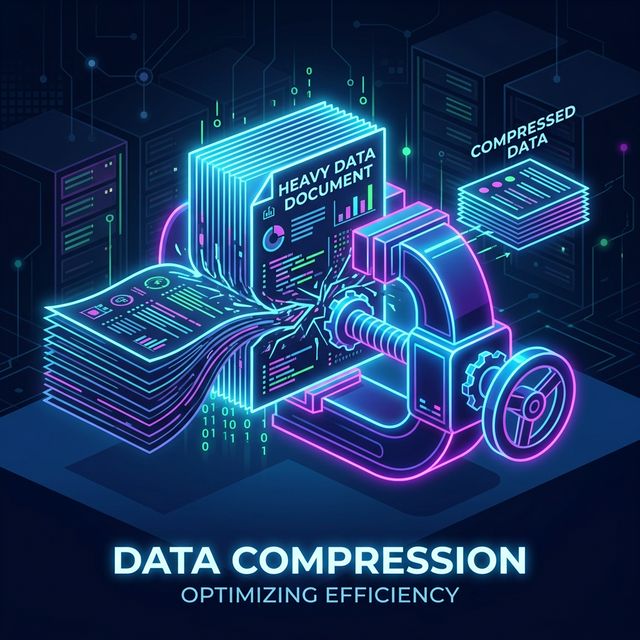
We've all been there: you finish working on a heavily researched report, an important portfolio, or a signed contract, only to be met with a frustrating system warning when you try to email it. "File exceeds maximum attachment size."
PDFs are universally loved because they lock down formatting, meaning your file looks exactly the same on your boss's screen as it does on yours. But this superpower comes with a catch. High-resolution images, embedded fonts, and complex graphical data often skyrocket PDF file sizes into the hundreds of megabytes.
Why Are PDF Files So Big?
Before fixing the problem, it helps to know what causes it. The biggest culprits behind massive PDFs usually include:
- Unoptimized Images: Inserting raw 4K photos directly into a Word doc before exporting it as a PDF will retain all that heavy data.
- Embedded Fonts: Some PDFs embed entire font families just so one single custom heading renders correctly.
- Hidden Vector Data: Graphics imported from Adobe Illustrator can carry hidden layers and metadata.
Method 1: The Magic of Online PDF Compressors
The absolute fastest and most reliable way to shrink a PDF while preserving visual quality is using a dedicated online compressor. Modern web tools utilize advanced compression algorithms that strip out invisible metadata and smartly downsample images to completely undetectable degrees to the human eye.
Pro Tip: When using an online compressor, look for tools that offer "lossless" compression or a "balanced" profile. This maintains screen readability while vastly reducing size.
Here is the standard workflow for compressing online:
- Head over to a secure online tool like our very own Sortt.in Image Compressor (which also works magic on PDF image extraction!).
- Upload your bulky PDF document.
- Let the server handle the heavy lifting. The tool analyzes images within the PDF and adjusts their DPI to web-friendly standards (usually 144 or 72 DPI).
- Download your newly slimmed-down file.
Method 2: Optimize Within the Native Software
If you're creating the PDF yourself inside tools like Microsoft Word or Adobe Acrobat, you have control over the output size right at the export stage.
In Microsoft Word, when clicking Save As > PDF, look out for the "Optimize for" toggle right below the file name. Switching this from "Standard" to "Minimum size (publishing online)" will drastically cut down the MB count before the PDF is even born.
Final Thoughts
Compressing a PDF shouldn't mean blurring your company logo or making text unreadable. By relying on smart compression algorithms, you keep your documents looking crisp while ensuring they actually fit in a standard email attachment. Stop wrestling with cloud drive links and start compressing the smart way.
Ready to manage your files effortlessly?
Explore our suite of 100% free online PDF and Image tools designed to make your life easier.
View All Tools