How to Convert Images to PDF
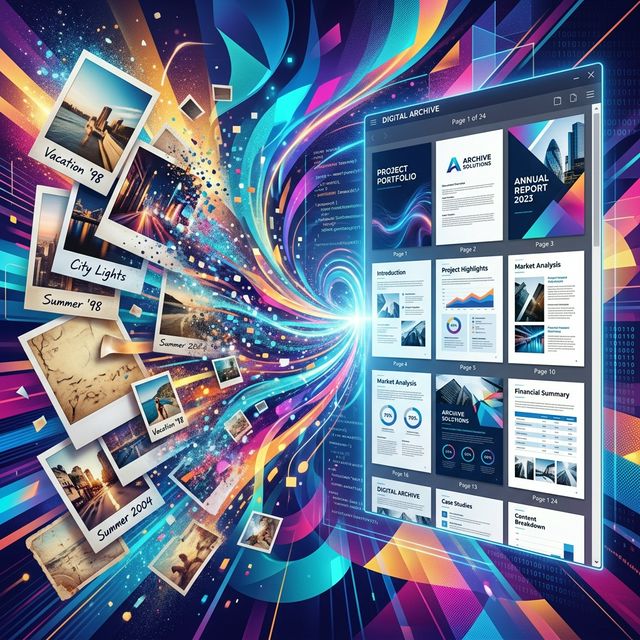
We take hundreds of photos a week, from scanning physical receipts to capturing textbook pages. But when it's time to submit these files—whether to a professor, an accountant, or a client—sending 15 separate '.jpg' attachments is a guaranteed way to cause confusion.
The universal solution? Converting and combining all those images into a single, cohesive PDF document.
Why PDF is Better for Multiple Images
Unlike image formats which display differently depending on the operating system or screen size, PDFs are "locked" files. When you compile images into a PDF, you are guaranteeing that Page 1 will always be Page 1, and the presentation will look completely professional.
Creating a PDF from Images (The Easy Way)
You don't need a heavy design program or premium software to make this happen. With online tools, the process is incredibly smooth.
- Gather your images (JPG, PNG, entirely mixed formats are fine) in a single folder.
- Navigate to a free Image to PDF web application.
- Drag and drop your images into the browser.
- Visually drag the thumbnails around so they are in the perfect reading order.
- Click the final "Convert" button. The server instantly stitches your images together into a single, paginated PDF file that is ready for email!
Pro Tip: Before converting, double-check if your images are massive (like straight from a high-res smartphone camera). Passing them through an image compressor first will ensure your final PDF isn't a massive 50MB file!
Ready to tidy up your photos?
Use our entirely free web tool to combine your images into professional documents.
Convert Images to PDF